
Feed configuration
Feed Configuration
To start tracking aircraft, you need to connect VRS X to a data source (Feeder).
Step-by-Step Setup
-
Open the Admin Panel.
-
Click on the Feeds tab in the sidebar.
-
Click the + Add Feed button.
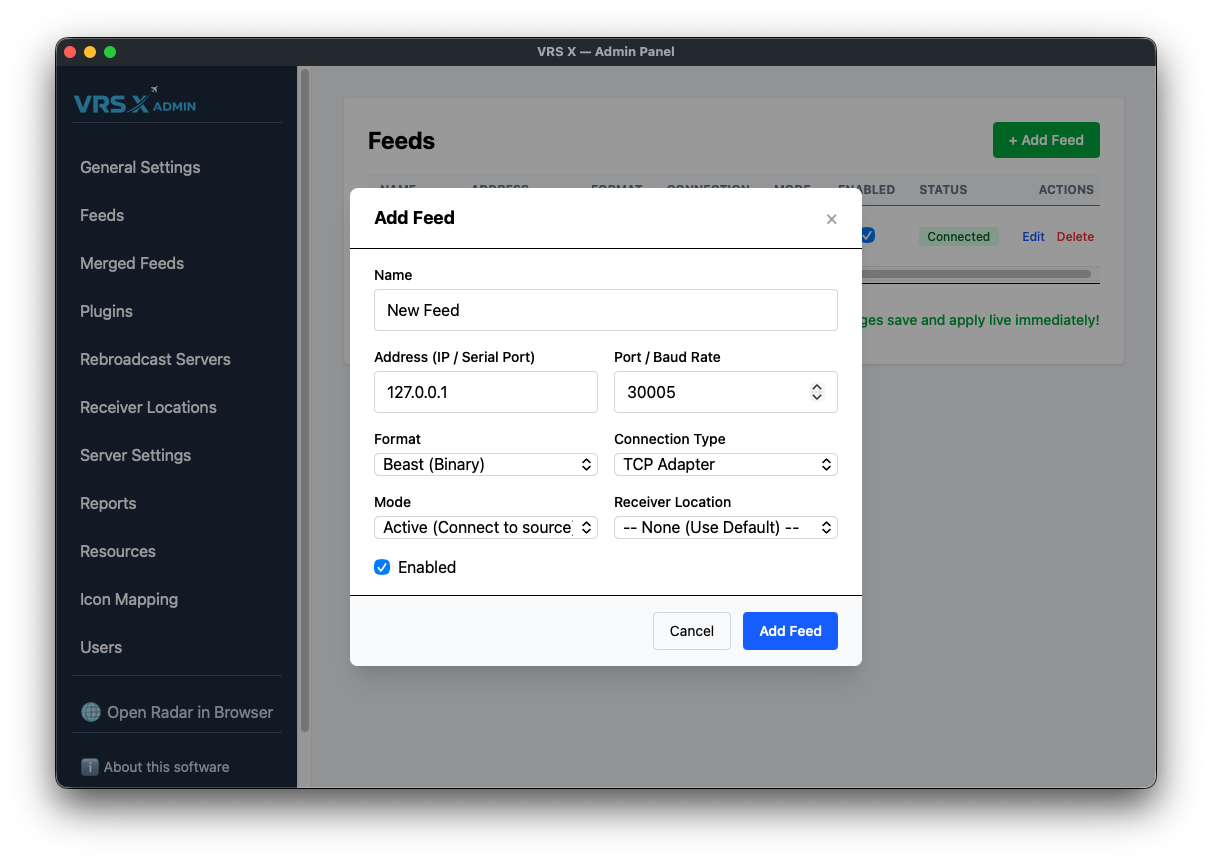
Configuration Fields
Connection Modes
-
Active (Standard): VRS X will initiate the connection to your feeder.
-
Passive (Push): VRS X will open a port and wait for the feeder to push data to it
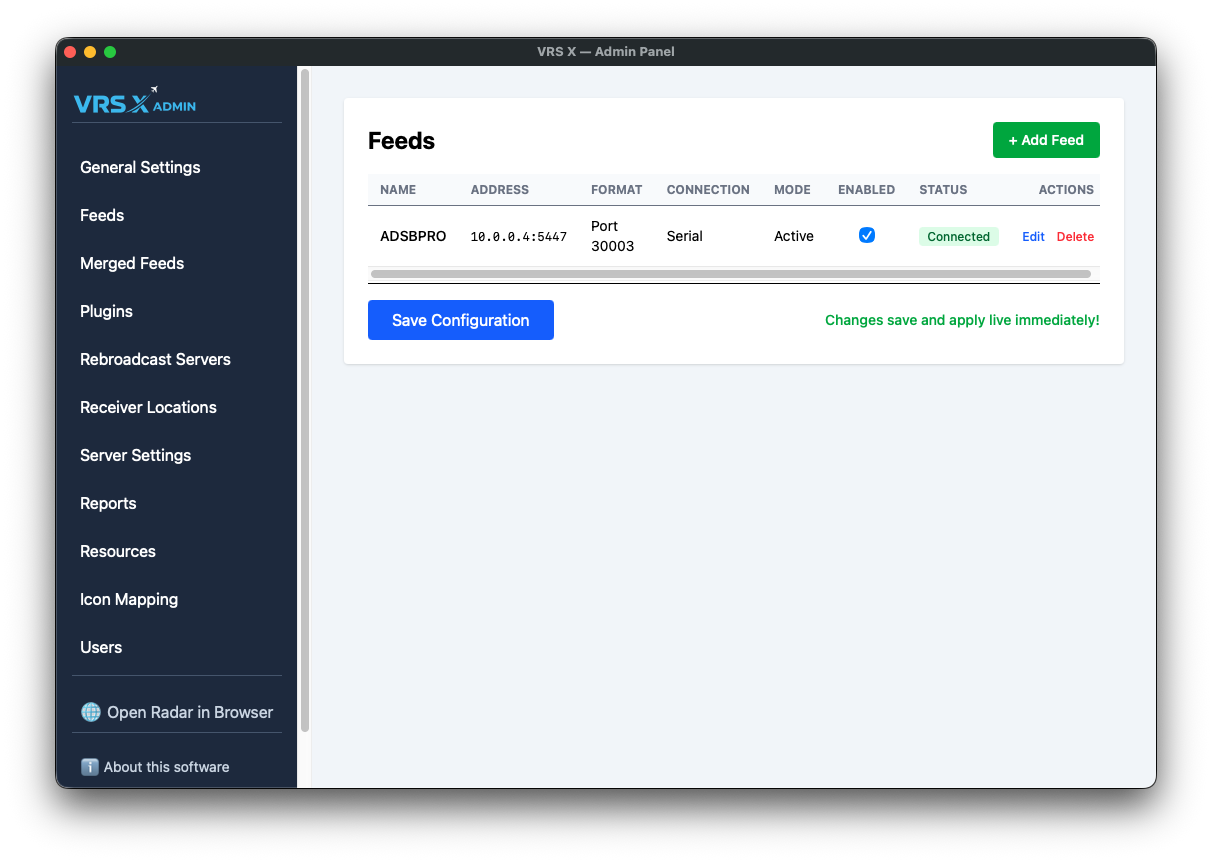
💡 PRO TIP: Once saved, your feed will appear in the list. Check the STATUS column to verify the connection.
⚠️ IMPORTANT NOTE: If you are using Active Mode and the connection fails, the STATUS column will provide a detailed error log. Please note that in Passive Mode, status information is limited since VRS X is just waiting for incoming traffic!
No comments to display
No comments to display