
Aircraft marker mapping
Aircraft Icon Mapping
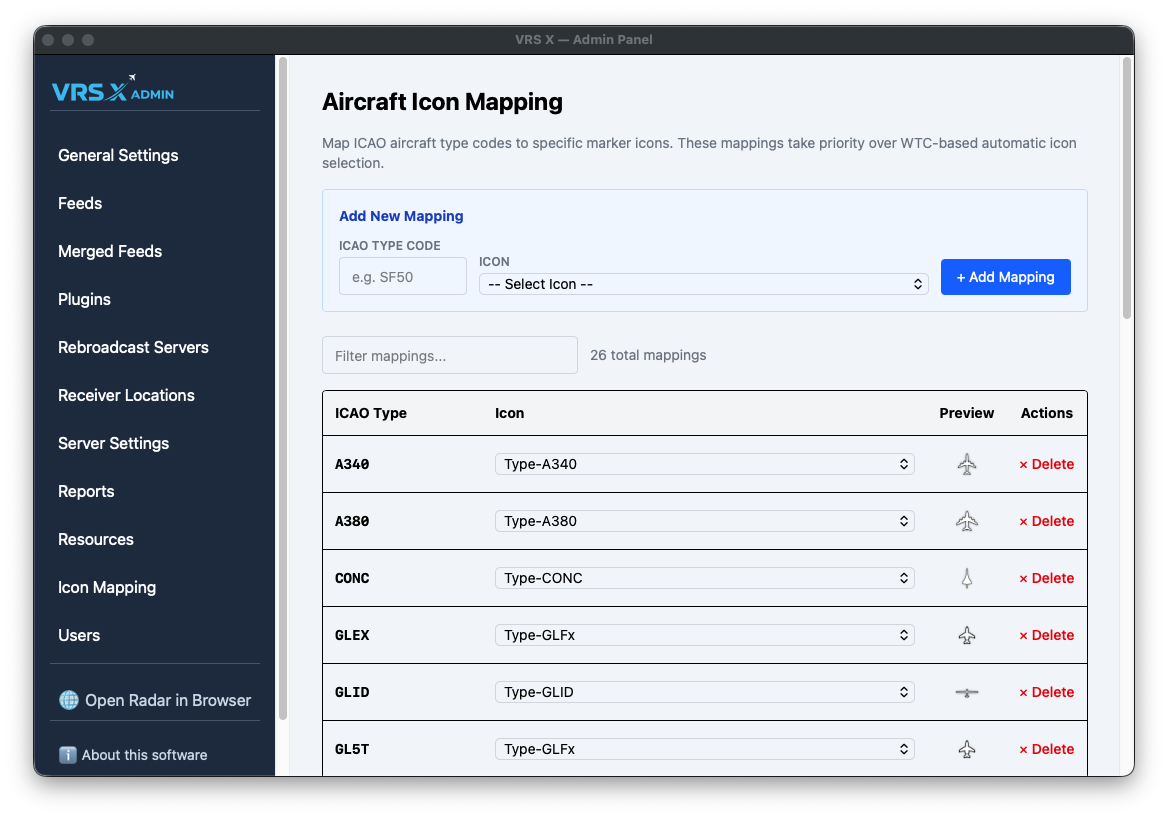
While VRS X features an intelligent automatic icon selection based on Weight Turbulence Category (WTC), you can manually override these defaults for specific aircraft. This allows you to assign dedicated silhouettes to your favorite or most common aircraft types.
How it Works
Manual mappings are the highest priority in the rendering engine. If an ICAO code is defined here, its assigned icon will always take priority over WTC-based automatic selection.
Adding a New Mapping
Managing Your Icons
The mapping table provides a clear overview of your custom silhouettes:
-
Filter: Quickly search through your mappings using the filter box (useful when you have dozens of custom icons).
-
Preview: See the actual marker silhouette in the Preview column before it hits the live map.
-
Actions: Easily remove a mapping by clicking × Delete if you want to revert to automatic WTC selection for that type.
No comments to display
No comments to display