# External API Integrations
## External API Integrations: Google Maps & OpenAIP
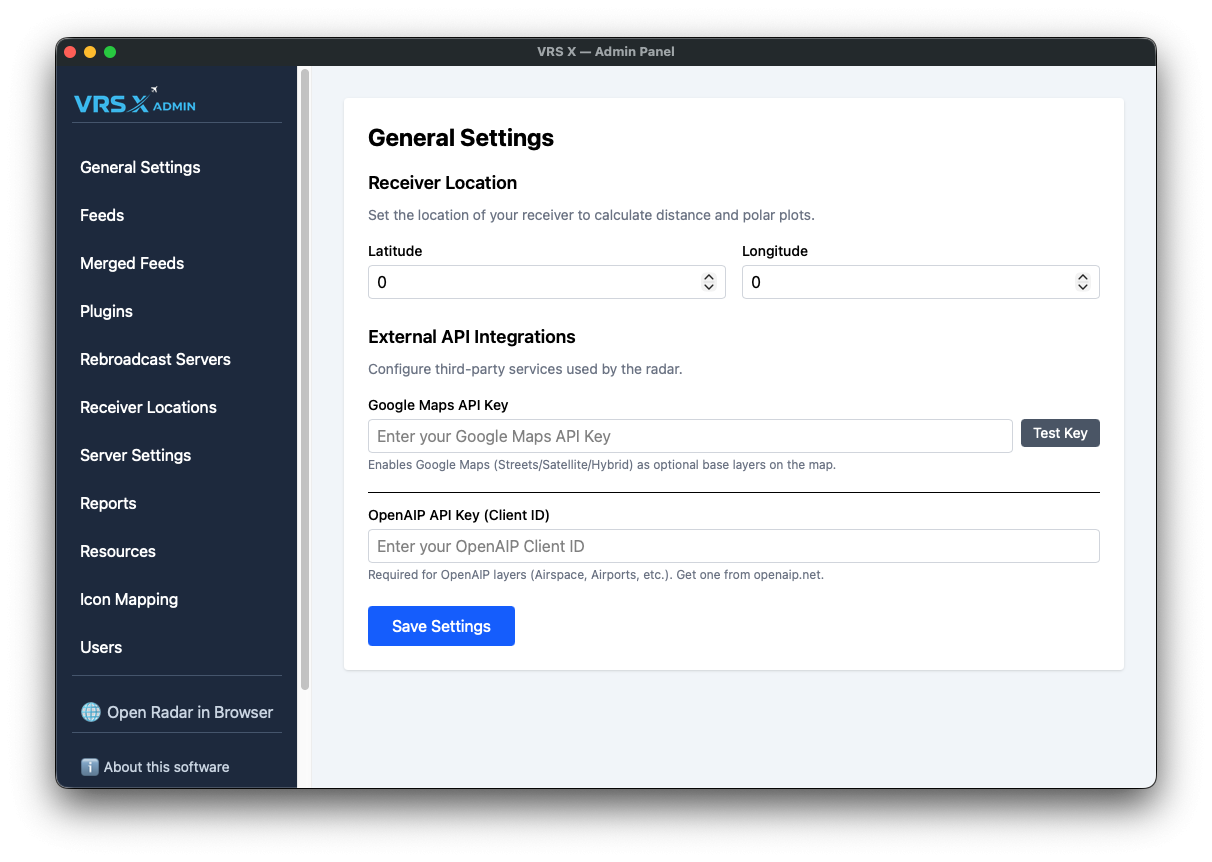
To enhance your radar experience with professional-grade base layers and aeronautical data, VRS X supports integration with third-party providers. These configurations are located in the **General Settings** panel.
---
### 1. Google Maps Integration
Adding a Google Maps API key unlocks premium base layers, including **Streets**, **Satellite**, and **Hybrid** views.
- **Setup**: Enter your unique key into the **Google Maps API Key** field.
- **Verification**: Click the **Test Key** button to instantly verify if your API key is valid and active.
- **Result**: Upon a successful test and save, the radar map will display additional Google Maps base layer options.
### 2. OpenAIP Integration
OpenAIP provides critical aeronautical layers, such as global airspaces and specialized airport data.
- **Setup**: Enter your Client ID (obtained from **openaip.net**) into the **OpenAIP API Key (Client ID)** field.
- **Validation**: Note that unlike Google Maps, there is no manual "Test" button for OpenAIP; the key is validated when the map engine requests data layers.
- **Result**: Once configured, OpenAIP layers like Airspace and specialized Airports will be available for rendering.
[](https://docs.vrsx.app/uploads/images/gallery/2026-02/APZMN78S1c0bjEcB-image.png)
---
### 💾 Saving Your Configuration
To apply any changes made to External API Integrations:
1. Ensure your keys are correctly pasted.
2. Scroll to the bottom of the **General Settings** page.
3. Click the **Save Settings** button to persist your changes to the server.